
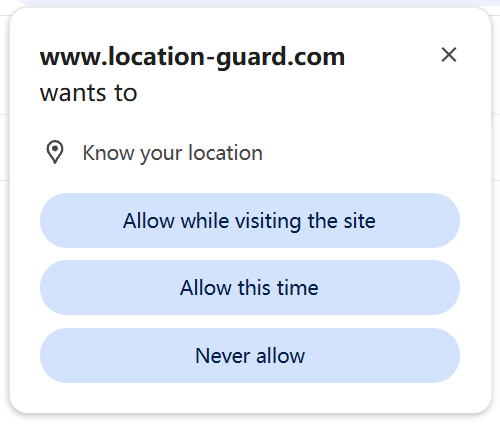
Many websites ask for your location when you visit them. Weather sites, maps, stores, local search tools, and delivery apps may use your browser location to show nearby results or personalize what you see.
If you do not want websites to access your precise browser location, you have two practical options. You can block location requests in your browser settings, or you can use an extension that changes the location your browser reports through the Geolocation API.
Why Do Websites Know My Location?
When a website needs your location, it asks your browser for permission. If you allow the request, the browser or operating system estimates your position using available signals such as GPS, nearby wireless networks, and IP-based location data.
The website usually receives browser-reported coordinates and an accuracy estimate. It does not need to receive the raw signals that were used to calculate the location.
Browser geolocation is different from IP address location. An IP address may only suggest a broad city or region, while browser geolocation can be more accurate on devices with GPS or known Wi-Fi signals. The exact accuracy depends on your device, browser, network, and permission settings.
A VPN mainly changes your IP address. It does not reliably change the location returned by your browser's Geolocation API, especially when your device can use GPS or nearby wireless networks. If you care about both IP-based location and browser-reported location, you need to understand both signals separately.
Method 1: Block Location in Your Browser Settings
The simplest approach is to block location requests. This is a good choice if you rarely use websites that need your precise location.
How to Block Location in Chrome
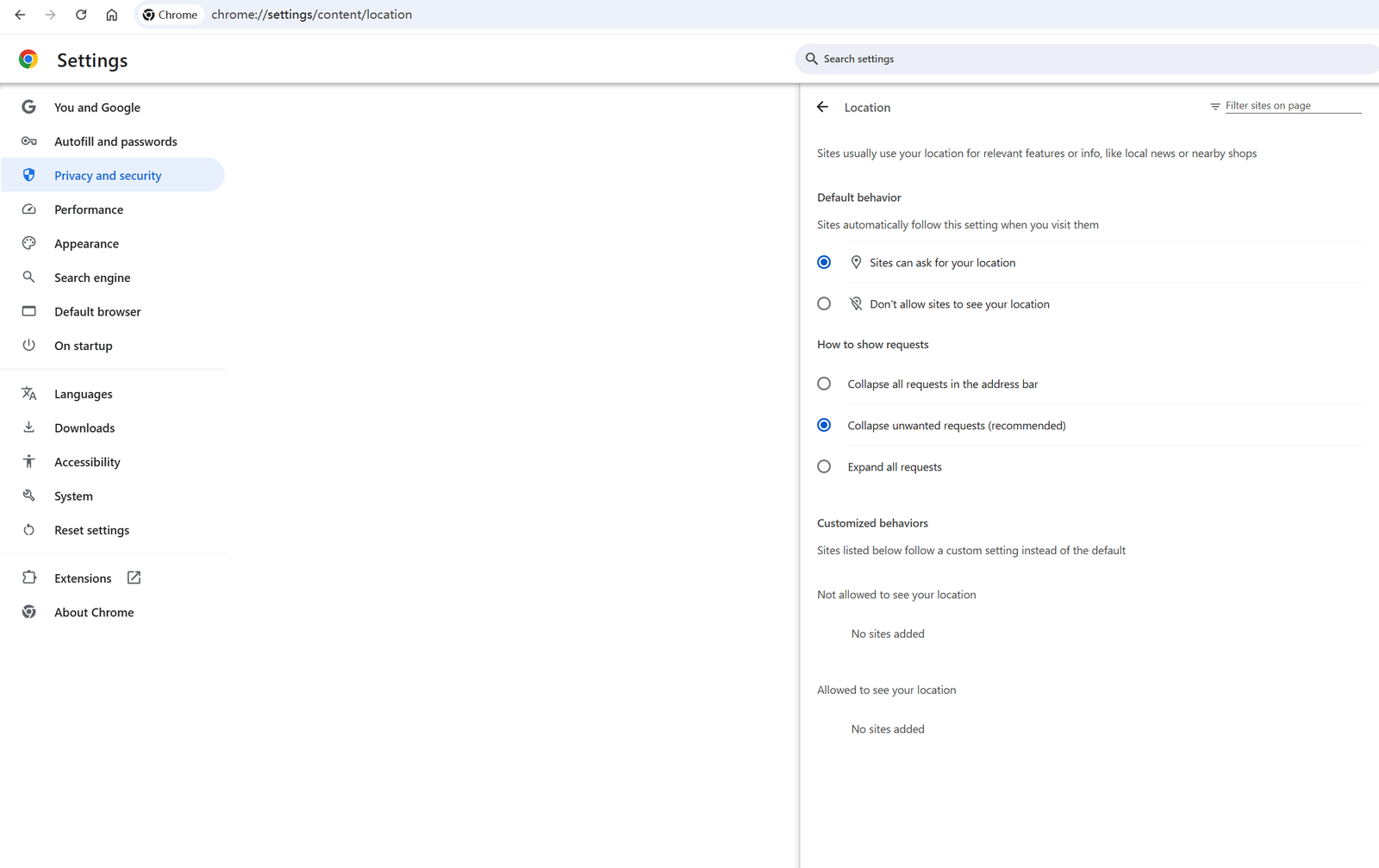
- Open Chrome.
- For one website, click the site information icon on the left side of the address bar.
- Find Location and change it to Block.
- To manage location settings for all websites, open
chrome://settings/content/location. - Choose the setting that prevents sites from asking for or seeing your location.
How to Block Location in Firefox
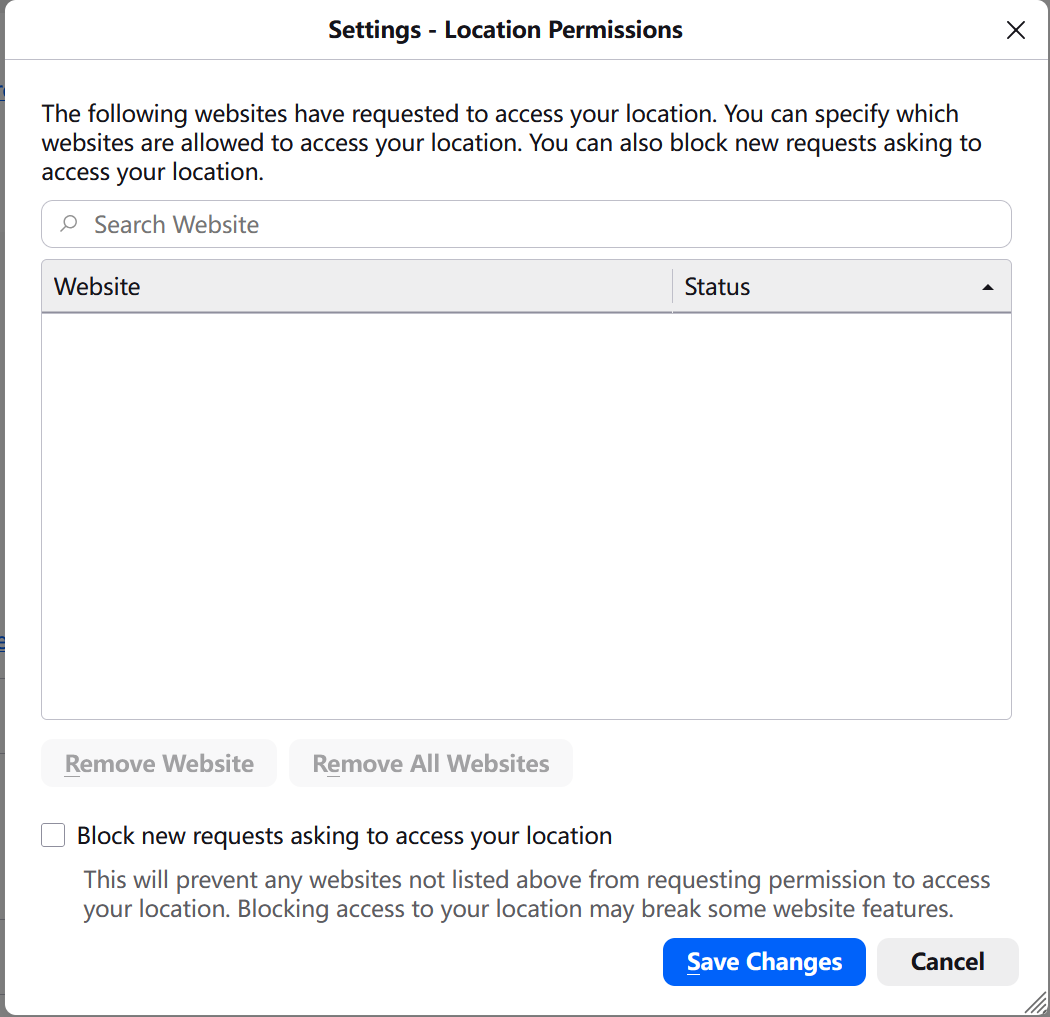
- Open Firefox.
- Type
about:preferences#privacyin the address bar and press Enter. - Scroll to the Permissions section.
- Find Location and click Settings.
- Check the option to block new requests asking to access your location.
How to Block Location in Edge
- Open Edge.
- Type
edge://settings/content/locationin the address bar and press Enter. - Change the location setting so websites cannot ask for or access your location.
- You can also manage location permission for individual websites from the site information panel in the address bar.
The Tradeoff With Blocking
Blocking location requests is easy, but it has limits. The website receives a permission error instead of a location result. Some websites may still work normally, while others may show limited results or fall back to IP-based location.
Blocking also means you can only say no. You cannot provide a less precise or configured browser location for sites that need a location signal to function.
Method 2: Use a Browser Extension
A browser extension can give you more control. Some extensions adjust the coordinates returned by the browser's Geolocation API, so a website receives a browser-reported location that is less precise or configured by you.
Users sometimes call this a fake location, but for privacy and testing it is clearer to think of it as a configured browser location. It affects what the browser reports through location permission. It does not automatically change your IP address, account information, shipping address, payment details, timezone, or other signals.
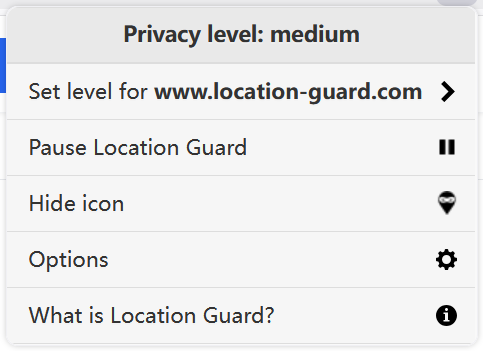
For Firefox, Edge and Opera: Use Location Guard
The Location Guard extension is free and open source. It is designed to protect browser location privacy by adding controlled noise to your real location, or by letting you set a fixed location.
With a lower privacy level, the reported location stays closer to your real area. With a higher privacy level, the reported location can move much farther away. This helps reduce exposure of your precise coordinates while still giving compatible websites a location result.
If you are comparing older extension information before installing, review the Location Guard V3 extension page as well.
- Go to www.location-guard.com/download.
- Choose the download option for your browser.
- Confirm the installation when your browser asks.
- After installation, click the Location Guard icon in your browser toolbar.
- Choose a privacy level: Low, Medium, or High.
- Refresh any website where you want the new setting to apply.
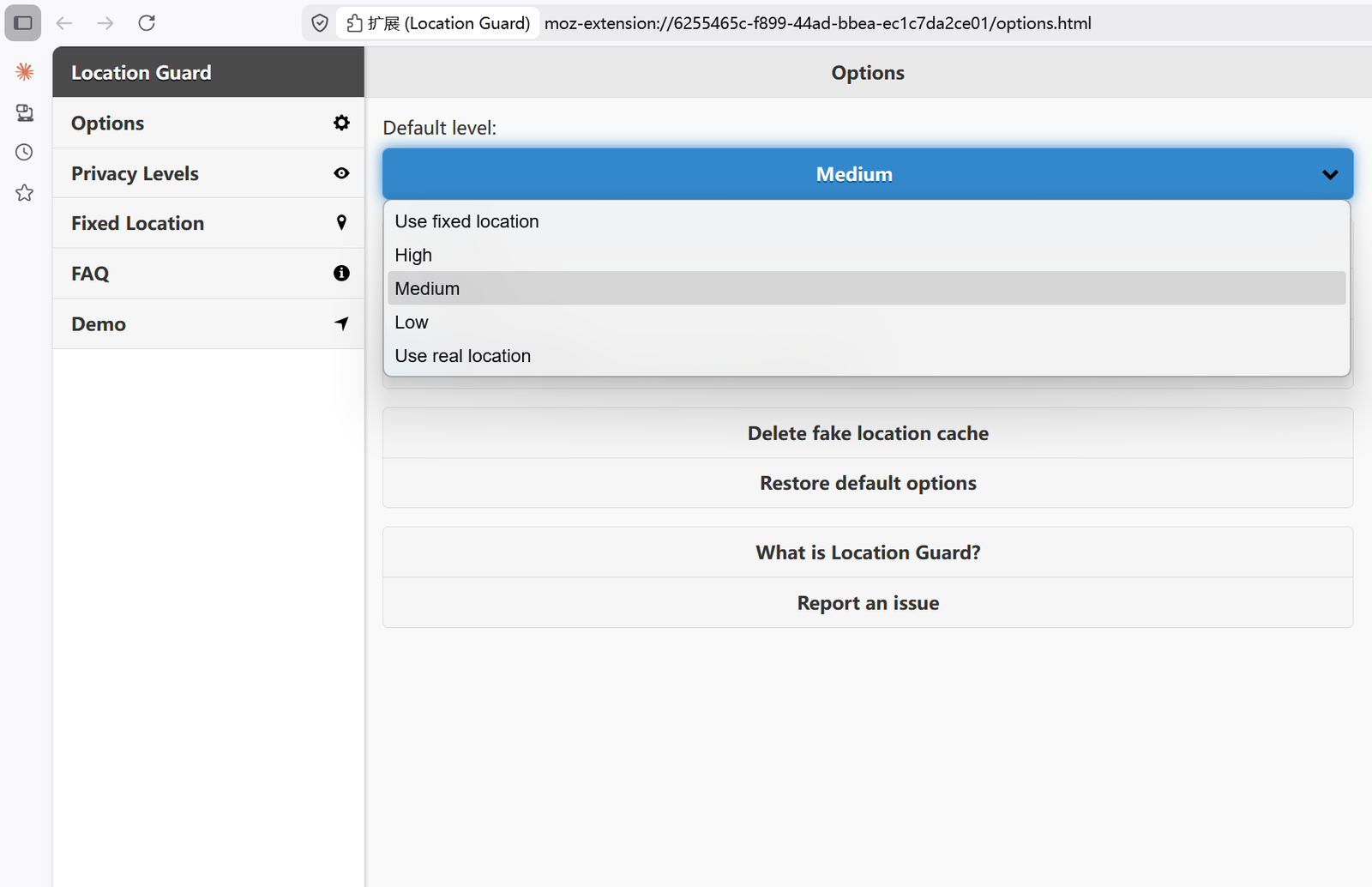
How to Set a Fixed Location
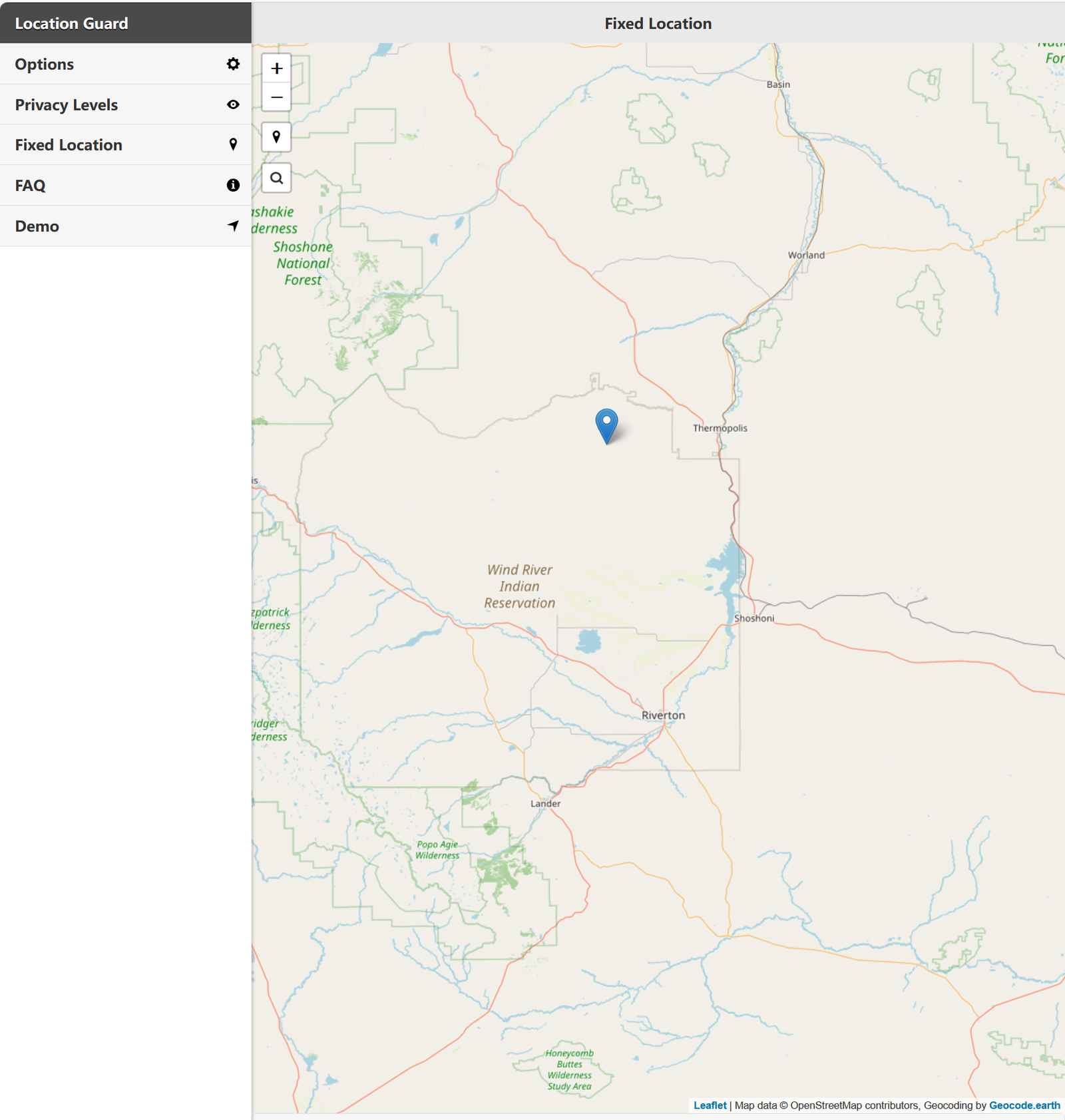
Fixed location mode lets you choose one specific place on a map. Location-aware websites that request browser geolocation will receive that configured location according to your extension settings.
- Click the Location Guard icon.
- Open Options.
- Choose Fixed location from the menu.
- Click on the map to choose the location you want to use.
- Save your settings.
For Chrome: Use Change Geolocation
Location Guard is not currently available in the Chrome Web Store. For Chrome, you can use a geolocation extension such as Change Geolocation, or another browser location tool that lets you configure latitude and longitude.
- Open the Chrome Web Store and search for Change Geolocation.
- Review the extension permissions, description, and user feedback.
- Click Add to Chrome if you decide to install it.
- After installation, click the extension icon in your toolbar.
- Type the latitude and longitude you want the browser to report.
- Turn on the extension and refresh the website you want to test.
If you do not know the latitude and longitude of a place, open Google Maps, right-click a location on the map, and copy the coordinates shown in the menu.
What This Guide Does Not Hide
Browser location controls only affect browser geolocation permission and the coordinates returned through the browser's location API. They do not hide every signal a website may use.
- Your IP address may still suggest a country, region, or city unless you use a VPN or similar network tool.
- Your account profile, shipping address, billing country, or saved preferences may reveal location information.
- Your timezone, language, locale, and device settings may provide additional clues.
- Websites may compare multiple signals when they need higher confidence.
For that reason, treat browser location tools as one part of location privacy, not as an all-in-one privacy solution.
How to Check If It Is Working
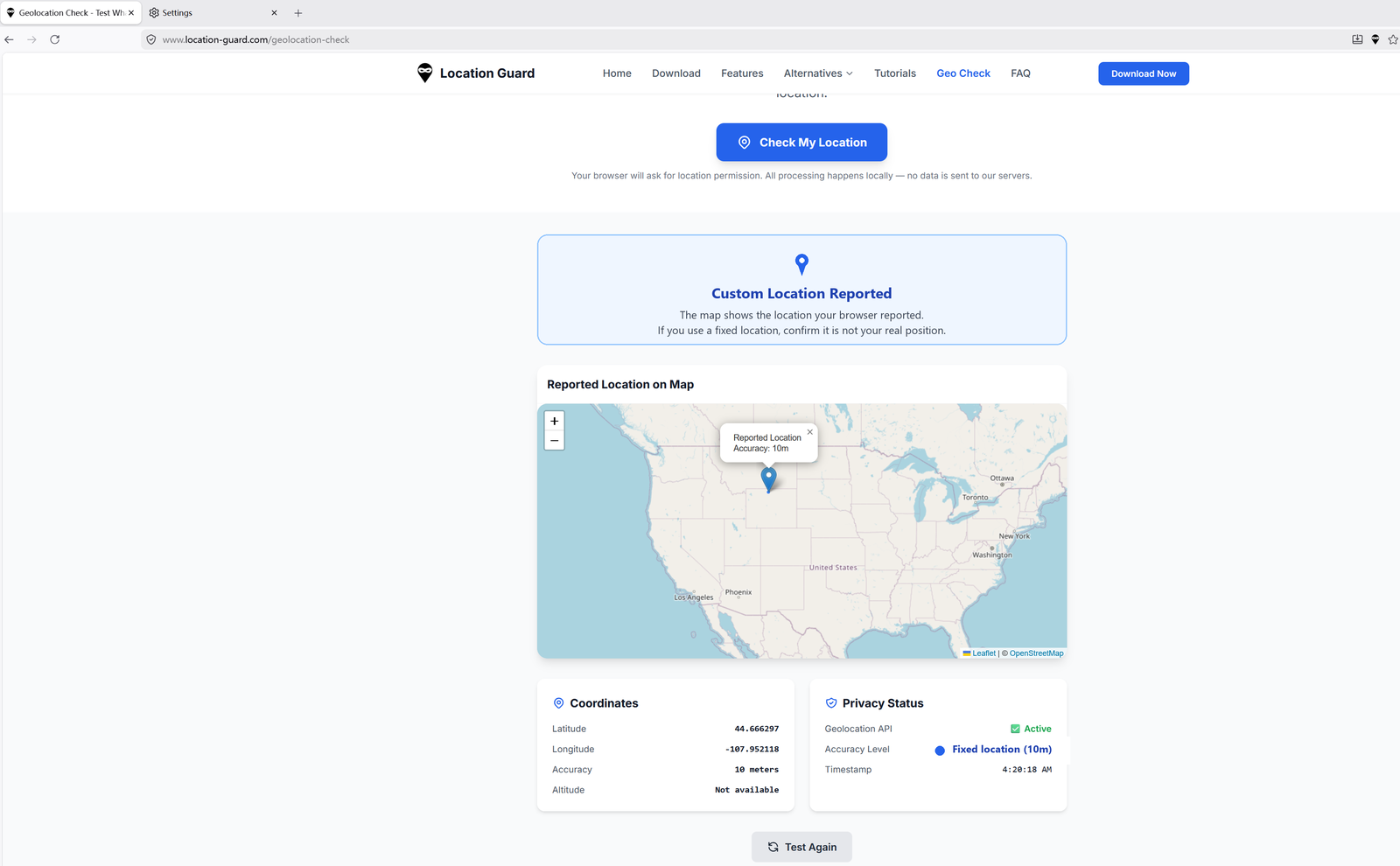
- Go to the check my location page.
- Click the Check My Location button.
- Allow location permission if your browser asks.
- Compare the result with the location you expected your browser to report.
If you are using a fixed location, the result should be close to the coordinates you selected. If you are using a noise-based privacy level, the result may still be near your real area, depending on the level you chose.
Which Method Is Right for You?
| Your situation | Best method |
|---|---|
| You want the simplest solution | Block location in browser settings |
| You want compatible websites to keep working | Use Location Guard or a similar browser extension |
| You want to test a specific city or coordinate | Use fixed location mode or coordinate-based settings |
| You are a developer testing a location-aware website | Use exact coordinates and verify with a test page |
Common Questions
Does hiding my browser location also hide my IP address?
No. Browser geolocation and IP address location are different signals. To reduce IP-based location exposure, you need a network privacy tool such as a VPN. To manage browser-reported location, use browser permission settings or a browser extension.
Will a website know that I changed my browser location?
If you block location completely, the website receives a permission error and may know that location access was denied. If you use an extension, the website may receive coordinates instead of an error, but it can still compare browser geolocation with other signals such as IP address, timezone, locale, account information, or device settings.
Can I use these methods on my phone?
Browser extension support is more limited on mobile than on desktop. On phones, the most reliable first step is to review your device and browser location permissions, and restrict location access for apps or websites that do not need it.
Is it okay to use a configured or fake browser location?
Use browser location tools responsibly. They can be useful for personal privacy, web development, and testing location-aware features. Do not use them for fraud, abuse, misrepresenting your identity, or violating laws or website terms.
Does Location Guard cost money?
No. Location Guard is free and open source. You do not need to pay or create an account to use it.
Summary
Websites can request your browser location, but you control whether to allow that request. Blocking location access is the fastest option. A browser extension gives you more control when a website needs a location result to work.
After you finish setup, use the My Location tool to confirm what location your browser is reporting. For installation links and browser-specific options, visit the download page or compare related tools on the alternatives page.