
When a website requests your location, your browser shows a permission prompt. In most browsers, you can allow the request, deny it once, or block location access for that site.
Many people choose "Deny" and assume the issue is solved. Denying does work for browser geolocation, but it does not remove every location signal a website may use.
This guide explains what happens after you click "Deny," what websites can still infer, and which method is right for different privacy needs.
What Happens When You Click "Deny"
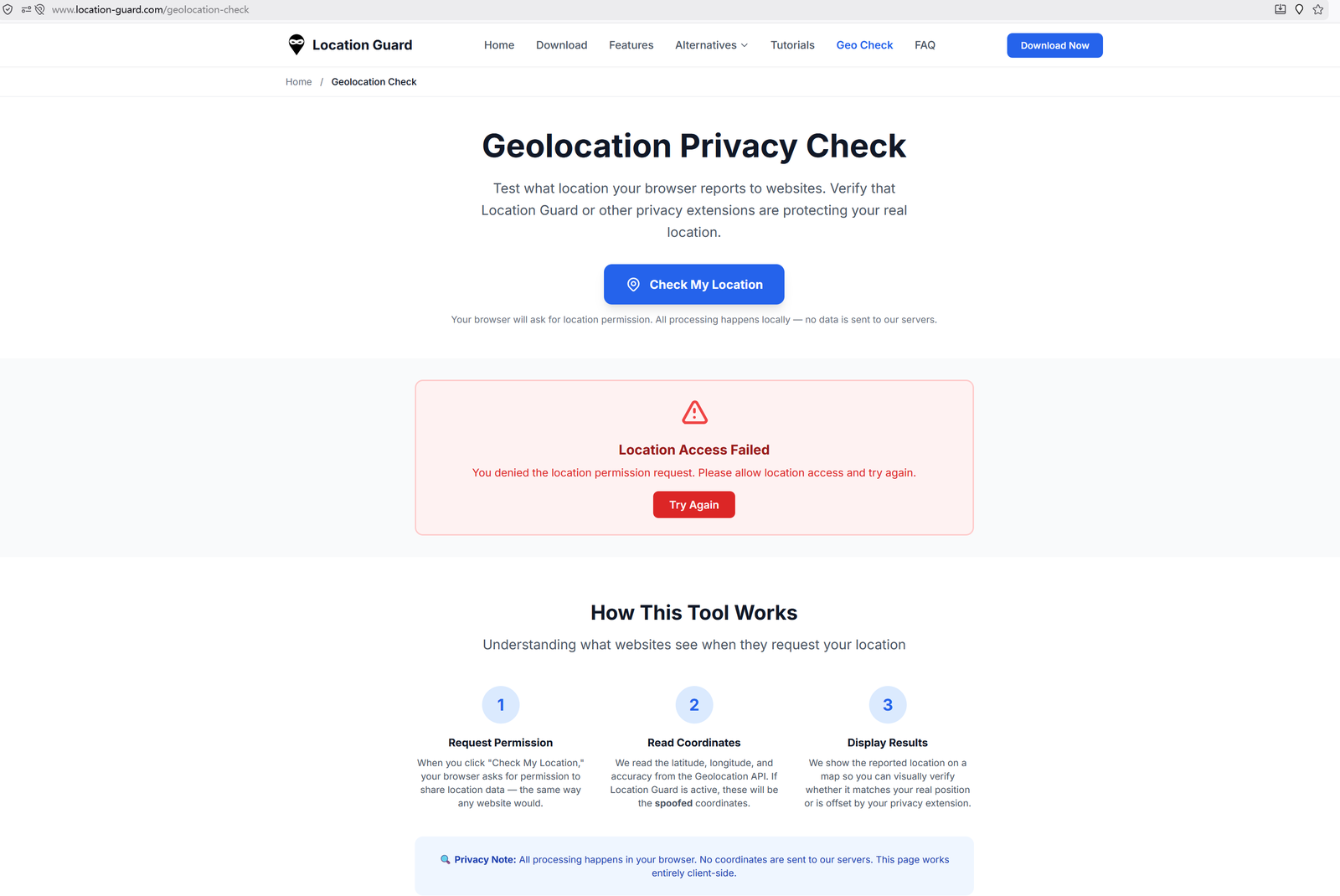
When you click "Deny," your browser does not return Geolocation API coordinates to the website. Instead, the website receives an error result that indicates location permission was denied.
So clicking "Deny" does work: the website does not receive your browser-reported latitude, longitude, and accuracy through that location request.
However, the website may still show a permission message, ask again later, remember that the request failed, or use a broader location signal such as your IP address.
Does the Website Know That I Denied Access?
Yes. A denied geolocation request is not hidden from the website. The browser returns a permission-denied error result, so the website can tell that browser geolocation was not allowed.
Some websites show a message after you deny access, such as "To use this feature, please allow location access." That message appears because the website received the permission-denied result and changed the page accordingly.
This may not be a major privacy issue by itself, but it is useful to understand that denying browser geolocation is different from silently giving the website no signal at all.
Can Websites Still Know My Location Even If I Deny It?
They cannot get browser geolocation from that denied request, but they may still estimate a broader location through other signals.
The most common signal is your IP address. Every device that connects to the internet uses an IP address, and websites can normally see the IP address that connects to them. This does not require the browser geolocation permission prompt.
IP-based location can sometimes suggest a country, region, city, ISP location, or broader area. It is not the same as browser geolocation, and it is not always accurate, but it can still provide useful location context to websites.
After you deny location permission, the practical difference is:
- Browser geolocation: not shared through the denied request
- IP-based location: may still be visible to the website
A website may not know your precise address or street from IP-based location, but it may still estimate a city, region, or network location.
Why Denying Is Not Enough
Imagine you open a news website. It asks for browser location, and you click "Deny." You may still see local news, local weather, or local ads.
In many cases, the site did not need precise browser geolocation to show that content. It may have used IP-based location, account settings, language, region preferences, or other general signals.
It is common for websites to use IP-based location as a fallback or as a separate signal. When browser geolocation is denied, they may still use that broader location estimate.
For casual browsing, this level of location exposure may be acceptable. If location privacy is important to you, browser geolocation and IP-based location should be managed separately.
What You Can Do for Better Protection
There are two separate signals to think about: browser geolocation and IP-based location.
For browser location
Instead of only clicking "Deny," you can block location permission in browser settings or use a browser extension that reports an adjusted or configured browser location. This can be useful when a website needs a location result to function, but you do not want to expose your precise browser location.
Location Guard is a good option for Firefox, Edge, and Opera users. Change Geolocation is an option for Chrome users. Both can be found on our download page.
For IP address location
To reduce IP-based location exposure, you need a network privacy tool such as a VPN. A VPN routes your connection through another network, so websites see the VPN server's IP address instead of your normal one.
Using a browser location extension together with a VPN can help manage both browser geolocation and IP-based location. It is broader protection, but it is still not an all-in-one privacy guarantee.
Which Method Is Right for You?
| Your situation | Best method |
|---|---|
| You want to reduce precise browser geolocation exposure | Use Location Guard, Change Geolocation, or block browser location requests |
| You want to reduce city or region exposure from your IP address | Use a VPN or another trusted network privacy tool |
| You want to manage both browser geolocation and IP-based location | Use a browser location tool together with a VPN |
| You want a quick and simple solution | Block location in browser settings |
Common Questions
If I deny location on every website, am I protected?
Your browser geolocation is protected from websites that you deny. But websites may still estimate your approximate location using your IP address or other non-geolocation signals. Denying browser location permission does not hide your IP address.
Does using a VPN make denying browser location unnecessary?
No. A VPN mainly changes your IP address. It does not reliably change browser geolocation. If a website is granted access to your browser location, it may still receive the location reported by your browser even while a VPN is enabled.
What happens if I choose "block permanently" instead of "deny once"?
Your browser geolocation will not be shared either way. The difference is persistence: a permanent block tells the browser to keep denying that site until you manually change the setting. The website may still estimate location from your IP address.
Can I check what my current location looks like to websites?
Yes. Our free my location now test shows the browser geolocation result returned by your browser. It helps you understand what a website can receive when browser location permission is allowed.
Do all websites use IP address as a backup?
No. Some websites only use browser geolocation and may simply stop working if you deny permission. Other websites, including many news, shopping, and advertising systems, may use IP-based location automatically or alongside browser geolocation.
Summary
Clicking "Deny" stops your browser from returning geolocation coordinates to that website. It does not hide every other location signal, and it does not hide your IP address.
Websites receive a permission-denied result when browser geolocation is denied. They may also estimate a broader location through your IP address or other signals.
For better location privacy, consider blocking browser location requests, using a browser location tool such as Location Guard, and using a VPN if you also want to reduce IP-based location exposure.
You can check what your browser reports by using our free My Location tool. The test takes about one minute and does not require installation.