
Many people assume that websites can only see a rough city-level location. That is sometimes true for IP-based location, but browser geolocation can be more precise when you allow a website to access it.
This guide will show you how to test what your browser reports right now. You do not need to install anything, create an account, or change browser settings before the test.
How Can Websites Determine My Location?
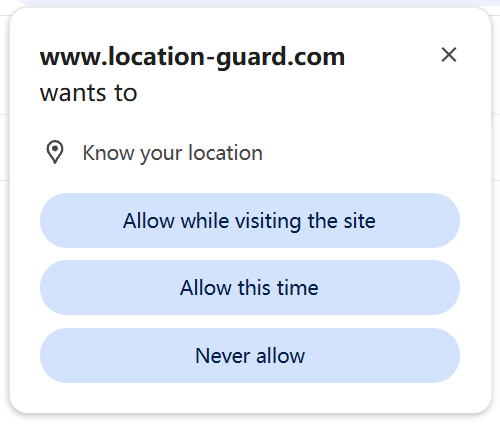
Websites usually rely on two different location signals: IP-based location and browser geolocation.
The first method is your IP address. Every device that connects to the internet uses an IP address, and websites can use it to estimate a rough location. This is often a country, region, city, or the city associated with your internet provider. It is useful for broad location, but it is not always precise.
The second method is browser geolocation. When a website requests geolocation and you allow the request, your browser can estimate your location using available signals such as GPS, nearby Wi-Fi networks, and IP-based data. The website receives browser-reported coordinates and an accuracy estimate.
Browser geolocation can be much more accurate than IP-based location on some devices, especially phones or laptops with strong location signals. On other devices, the result may be broad or inaccurate. The exact result depends on your browser, operating system, device hardware, network, and permission settings.
A VPN mainly changes your IP address location. It does not reliably change the location returned by your browser's Geolocation API. If you allow browser geolocation, your browser may still return a location based on device or network signals even while a VPN is enabled.
Why You Should Check Your Location Now
Most people never check what their browser reports after a location request. They may have allowed location permission on a website months ago, or a browser may remember a previous decision for a specific site.
A website cannot normally read your precise browser geolocation without permission, but the permission prompt is easy to approve without thinking. Extensions, browser profiles, and saved site permissions can also change what happens when a site asks for location access.
Testing takes about one minute. After the test, you will know what this browser reports when you allow a website to request location. Then you can decide whether to block location requests, adjust site permissions, or use a location privacy extension.
How to Test Your Browser Location
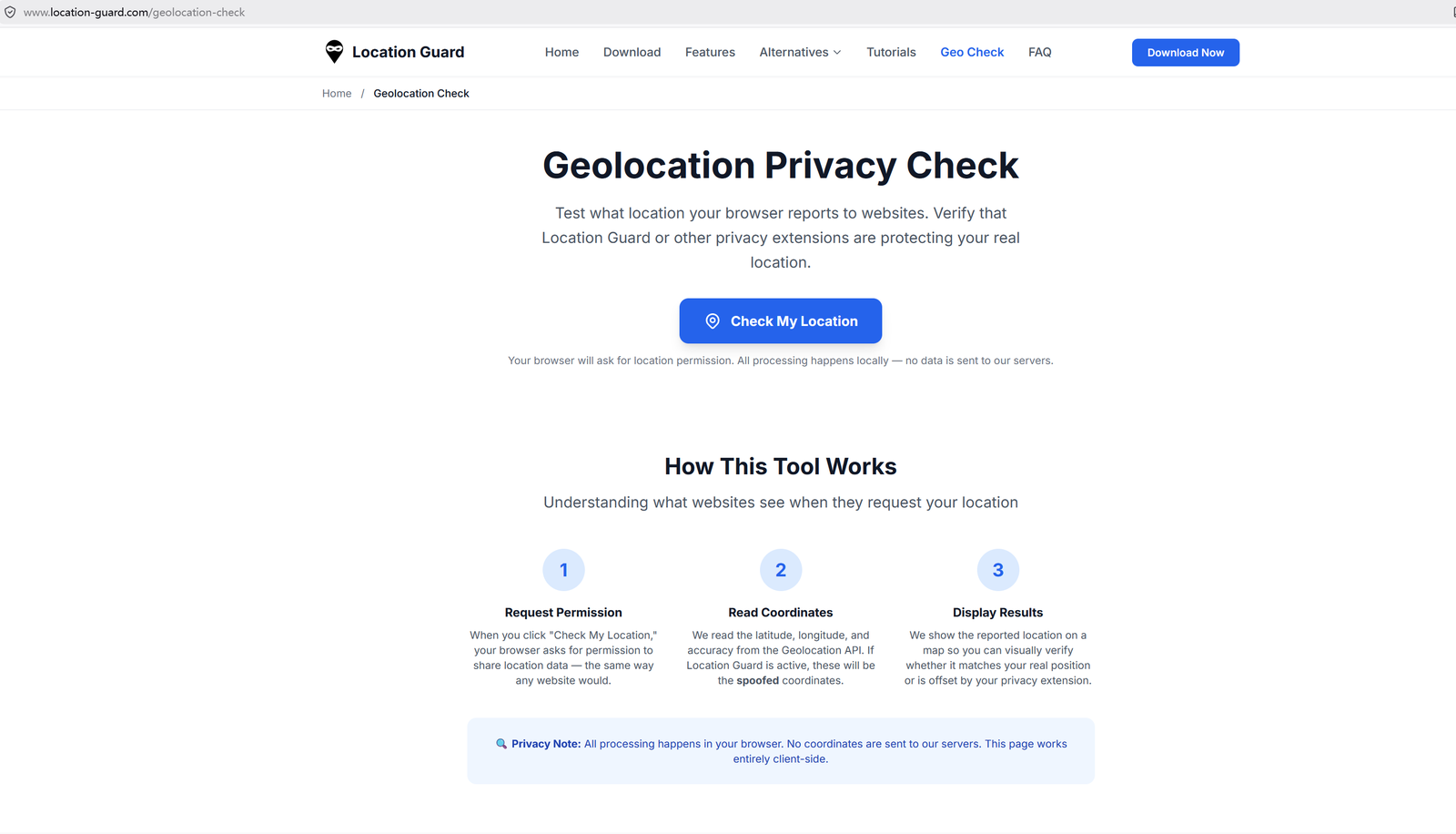
The My Location tool lets you check my current location signals from browser geolocation and approximate IP-based location. No registration or installation is necessary.
- Open www.location-guard.com/my-location in your browser.
- Click the button that says Check My Location.
- Your browser may show a popup asking whether this page can see your location. Click Allow if you want to test browser geolocation.
- Wait a few seconds. The results will appear on the page.
This is the same type of permission flow other websites use when they request browser geolocation.
How to Read the Results
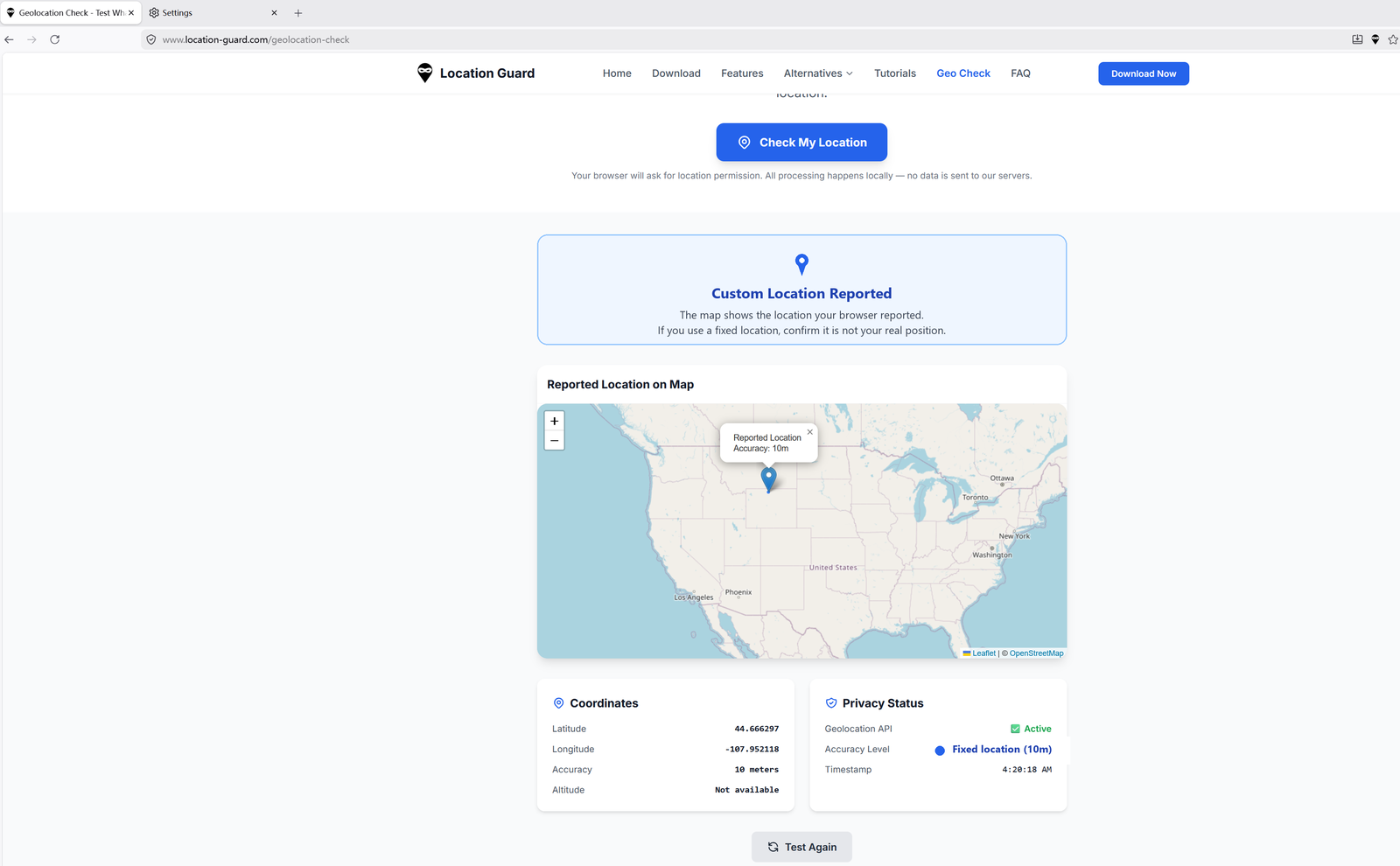
The results page presents several pieces of information. The most important values are latitude, longitude, accuracy, and the map marker.
Latitude and Longitude
Latitude and longitude are two numbers that identify a point on Earth. For example, you may see something like:
Latitude: 39.9042Longitude: 116.4074
These coordinates were reported by your browser. You can type them into Google Maps to see what location they point to.
Accuracy
The accuracy number is the browser's estimate of how precise the reported coordinates are. A smaller number means the browser is reporting a more precise result. For example, an accuracy value of 50 meters suggests a narrower area than an accuracy value of 5,000 meters.
Treat this as an estimate, not a guarantee. Real-world accuracy can vary depending on device sensors, network conditions, cached signals, browser behavior, and whether a privacy extension is active.
The Map
The page also displays a map with a marker on your browser-reported location. You can compare this with where you actually are, or with the fixed location you expected a privacy extension to report.
What the Results Mean
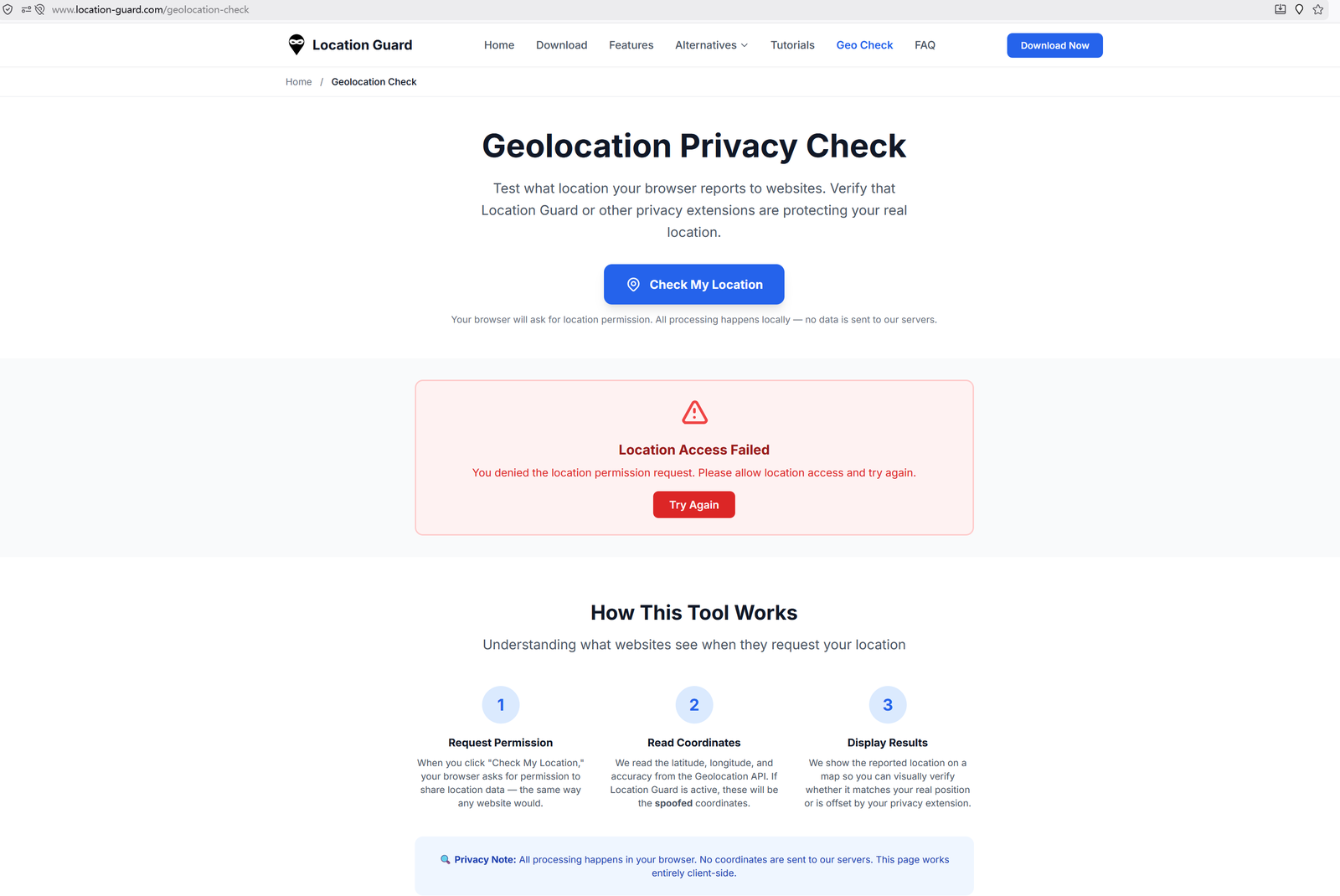
After the test, there are three common situations.
Situation 1: The location is very accurate
If the map shows an area very close to where you are, your browser is reporting a precise geolocation result. This means websites that request geolocation and receive your permission may get a precise location from this browser.
If you want to reduce this exposure, you can read our guide on how to hide your browser location.
Situation 2: The location shows only a city or general area
If the map shows only a rough area and not a precise position, your browser may be returning a broad location estimate. This is less precise, but it may still reveal a city, region, or approximate area.
Situation 3: The page shows "Permission Denied" or no location
Your browser blocked the geolocation request, or you denied permission for this page. In this case, the My Location tool cannot read browser geolocation. Other websites may still estimate a broad location from your IP address or other account and device signals, but they should not receive precise browser geolocation unless permission is allowed.
What to Do After the Test
Once your results are in, choose the next step based on what you saw.
If your location is very accurate and you want more privacy
You can block location permission in your browser settings, or install a browser extension that adds noise to your location or reports a configured location. We recommend the Location Guard extension for Firefox, Edge, and Opera users. For Chrome users, we recommend Change Geolocation.
You can find download links and instructions on our download page.
If you want to check that your location protection is working
If you already use Location Guard or another extension, this tool can help you verify that it is active. After you enable the extension, return to the My Location page and click Check My Location again.
With a noise-based privacy level, the reported location may be offset from your real position. With fixed location mode, the tool should show a result close to the coordinates you selected.
If your location is already blocked
Your browser settings are already blocking geolocation requests for this test. If you also want to reduce IP-based location exposure, you need a network privacy tool such as a VPN, because blocking browser geolocation does not hide your IP address.
Which Method Should You Use?
The right option depends on which location signal you want to manage. Browser geolocation and IP-based location are separate, so one setting does not always solve both.
| Your situation | Best method |
|---|---|
| You want to reduce precise browser geolocation exposure | Use Location Guard, Change Geolocation, or block browser location requests |
| You want to reduce city or region exposure from your IP address | Use a VPN or another trusted network privacy tool |
| You want to manage both browser geolocation and IP-based location | Use a browser location tool together with a VPN |
| You only want a quick and simple solution | Block location in your browser settings |
Common Questions
Will this tool save my location data?
No. The browser-location result is displayed on the page and is not saved to our server. The IP-location result uses an external IP lookup request to estimate your approximate location from your public IP address.
Why does the tool need my permission to access my location?
This is a browser security rule. Before a website can access browser geolocation, the browser asks for your permission unless you have already saved a permission choice for that site. You can allow or deny the request. If you deny it, the tool cannot show browser geolocation.
Why is my reported location different from where I actually am?
There are several possible reasons. You may already have a location extension installed. Your browser may be using a broad or cached location estimate. Your GPS or Wi-Fi signals may be weak. Or your device may be using IP-based location because more precise signals are not available.
Can this tool help me check if my VPN is working?
This tool checks browser geolocation and also shows an approximate IP location, so you can compare both signals in one place.
Does this tool work on mobile phones?
Yes. You can open the page in a mobile browser and test your location. Results may be more precise on a phone than on a desktop computer because phones often have GPS and stronger location services integration.
Summary
Websites can estimate your location through your IP address, and they can request more precise browser geolocation through the browser's permission system. Browser geolocation can be much more precise than IP-based location when permission is allowed and strong location signals are available.
You can use the free My Location tool to see what your browser reports right now. The test takes about one minute and does not require installation.
After the test, if you want to improve your location privacy, read our guide on how to hide your browser location or visit the download page to find the right extension for your browser.